Base for each car means that each car on your fleet can have it's own Base and Area of operation.
This feature makes the system so flexible that one company can operate in multiple areas, cities and even countries.
To set up the Base for each car please go to the back office > Dashboard > Cars > Edit or New car screen.
Scroll down to find "Use Own base?" and set this to "Yes".
The system will expand to show a few options that you can use to fine tune your car's area of operation:
Country - by default your country from general settings will be displayed but you can change this here if you are operating in multiple countries.
City - selecting city will help the system find the area of operation for that car quicker.
Create Area of operation: Area of operation button - click on the button to see the Area of operation on a map. You can resize the Area of operation by moving the nodes along the borders. You can move the area of operation by grabbing it and dragging it around. Note: adding City in above option will centre the Area of operation around that city so it's easier for you to manipulate the area.
Pick up in Area: Yes/No - with this option you limit if the Pick up address for this car is only within the Area of operation.
Drop off in Area: Yes/No - same as above but for Drop off address.
Base Address - if the usual place of your car waiting is known you can set it up here. This will help the system calculate the distance and time of that car travelling to the Pick up address and/or coming back from the Drop off address.
Base Latitude and Base Longitude will be automatically fetched by the address above but if for some reason they are not correct you can manually edit them here.
Base to Pick up Calculation: Yes/No - if Base coordinates are set and "Yes" selected here then the system will calculate both time and distance needed for the car to travel to the Pick up address.
Use for Fixed fare routes: Both price and time/Time only/No - here you can select if above option will be also used for Fixed fare routes (if Base to Pick up calculation is added to all Fixed fare routes).
- Both price and time - this option will add Price calculation for Base to Pick up to all Fixed fare routes and will also add time calculation for Base to Pick up to block off Car availability so there are no double bookings.
- Time only - this option will not change the Price of the Fixed fare route but will consider the time needed for Base to Pick up and block off Car availability to avoid double bookings.
- No - with this option Base to Pick up will not be considered for Fixed fare routes.
Base to Pick up charge: Flat rate/Per unit distance - with this option you set up what the Price (charge) for Base to Pick up will be.
- Flat rate - this is a flat rate charge that will be added to any booking.
- Per unit distance (kilometre or mile depending on your General settings) - this option will calculate the Price to add to the booking based on distance between Base and Pick up address.
Charge if Base to Pick up over unit distance: - here you set up the radius which Pick up should be away from Base so above settings are considered.
Drop off to Base calculation: Yes/No - when you select "Yes" here you will have all option as Base to Pick up above.
Add time after each booking (minutes) - with this option you can add some time to the automatic time calculation for the whole journey. This setting is useful if the driver needs some time for car cleaning, refuelling etc. Add a comment
This feature makes the system so flexible that one company can operate in multiple areas, cities and even countries.
To set up the Base for each car please go to the back office > Dashboard > Cars > Edit or New car screen.
Scroll down to find "Use Own base?" and set this to "Yes".
The system will expand to show a few options that you can use to fine tune your car's area of operation:
Country - by default your country from general settings will be displayed but you can change this here if you are operating in multiple countries.
City - selecting city will help the system find the area of operation for that car quicker.
Create Area of operation: Area of operation button - click on the button to see the Area of operation on a map. You can resize the Area of operation by moving the nodes along the borders. You can move the area of operation by grabbing it and dragging it around. Note: adding City in above option will centre the Area of operation around that city so it's easier for you to manipulate the area.
Pick up in Area: Yes/No - with this option you limit if the Pick up address for this car is only within the Area of operation.
Drop off in Area: Yes/No - same as above but for Drop off address.
Base Address - if the usual place of your car waiting is known you can set it up here. This will help the system calculate the distance and time of that car travelling to the Pick up address and/or coming back from the Drop off address.
Base Latitude and Base Longitude will be automatically fetched by the address above but if for some reason they are not correct you can manually edit them here.
Base to Pick up Calculation: Yes/No - if Base coordinates are set and "Yes" selected here then the system will calculate both time and distance needed for the car to travel to the Pick up address.
Use for Fixed fare routes: Both price and time/Time only/No - here you can select if above option will be also used for Fixed fare routes (if Base to Pick up calculation is added to all Fixed fare routes).
- Both price and time - this option will add Price calculation for Base to Pick up to all Fixed fare routes and will also add time calculation for Base to Pick up to block off Car availability so there are no double bookings.
- Time only - this option will not change the Price of the Fixed fare route but will consider the time needed for Base to Pick up and block off Car availability to avoid double bookings.
- No - with this option Base to Pick up will not be considered for Fixed fare routes.
Base to Pick up charge: Flat rate/Per unit distance - with this option you set up what the Price (charge) for Base to Pick up will be.
- Flat rate - this is a flat rate charge that will be added to any booking.
- Per unit distance (kilometre or mile depending on your General settings) - this option will calculate the Price to add to the booking based on distance between Base and Pick up address.
Charge if Base to Pick up over unit distance: - here you set up the radius which Pick up should be away from Base so above settings are considered.
Drop off to Base calculation: Yes/No - when you select "Yes" here you will have all option as Base to Pick up above.
Add time after each booking (minutes) - with this option you can add some time to the automatic time calculation for the whole journey. This setting is useful if the driver needs some time for car cleaning, refuelling etc. Add a comment
Since June 16th 2018 Google Maps has made the use of their API paid over a certain limit of $200 free usage per month.
They require you to enable Billing on your Google console account so the API keys are operational. Here is a short video about setting up Billing in your Google console account: https://www.youtube.com/watch?v=3Tkp1UdwfjI
You will need to obtain 2 separate API keys as they are used in different cases across the booking platform: Browser and Server API keys.
The difference between these 2 keys is just the Referrer that you set as a security restriction so no one else can use your keys and exhaust your quota.
To obtain the keys please go to the Google Cloud Console.
Create or select a project.
Click Continue to enable the API and any related services.
You will need to enable:
Google Maps Directions API
Google Maps GeoLocation API
Google Maps Geocoding API
Google Maps JavaScript API
Google Maps Places API for Web
On the Credentials page, get an API key (and set the API key restrictions).
Note: If you have an existing unrestricted API key or a key with browser restrictions, you may use that key.
To prevent quota theft, secure your API key following these best practices.
You should restrict your API keys, you will see below options for restriction
1) None
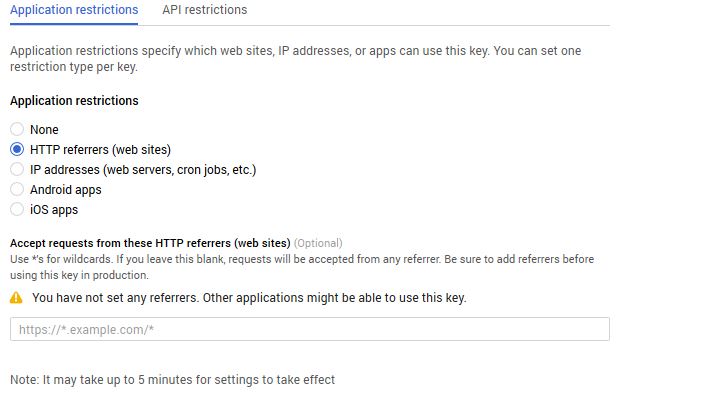
2) HTTP referrers (websites) >> This will act as Browser API key
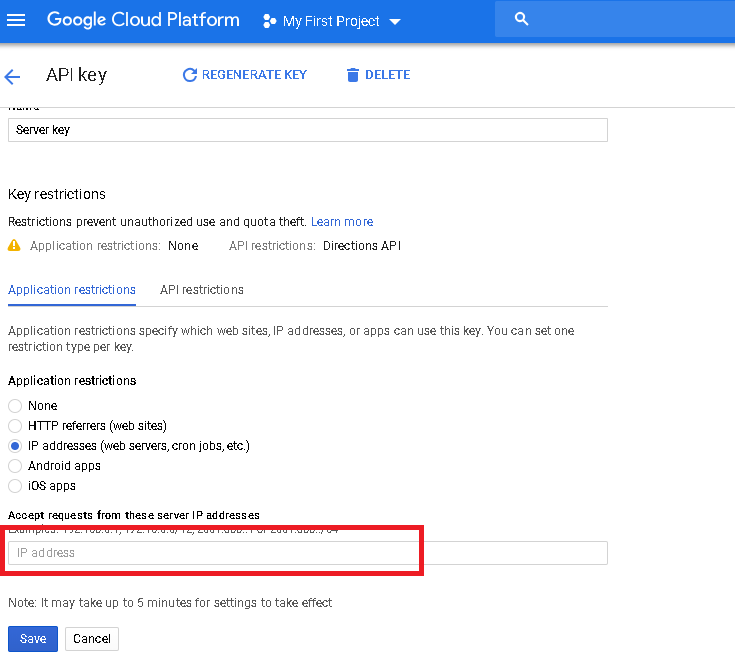
3) IP addresses (web servers, cron jobs, etc.) >> This will act as Server API key
4) Android apps
5) iOS apps
For Browser API key, you have to set different URLs that lead to your Booking form in all different languages. You can view and copy these URLs at your back office > Dashboard > Settings > Map settings.
For Server API key, you have to set server IP address as Referrer. The IP address of your server is also visible at the back office > Dashboard > Settings > Map settings.
Contact us if you have any questions or queries. Add a comment
They require you to enable Billing on your Google console account so the API keys are operational. Here is a short video about setting up Billing in your Google console account: https://www.youtube.com/watch?v=3Tkp1UdwfjI
You will need to obtain 2 separate API keys as they are used in different cases across the booking platform: Browser and Server API keys.
The difference between these 2 keys is just the Referrer that you set as a security restriction so no one else can use your keys and exhaust your quota.
To obtain the keys please go to the Google Cloud Console.
Create or select a project.
Click Continue to enable the API and any related services.
You will need to enable:
Google Maps Directions API
Google Maps GeoLocation API
Google Maps Geocoding API
Google Maps JavaScript API
Google Maps Places API for Web
On the Credentials page, get an API key (and set the API key restrictions).
Note: If you have an existing unrestricted API key or a key with browser restrictions, you may use that key.
To prevent quota theft, secure your API key following these best practices.
You should restrict your API keys, you will see below options for restriction
1) None
2) HTTP referrers (websites) >> This will act as Browser API key
3) IP addresses (web servers, cron jobs, etc.) >> This will act as Server API key
4) Android apps
5) iOS apps
For Browser API key, you have to set different URLs that lead to your Booking form in all different languages. You can view and copy these URLs at your back office > Dashboard > Settings > Map settings.
For Server API key, you have to set server IP address as Referrer. The IP address of your server is also visible at the back office > Dashboard > Settings > Map settings.
Contact us if you have any questions or queries. Add a comment
Category: Knowledge base
At the moment for different prices during different times you have to create 2 separate cars with different availability and add the different price in the Fixed fare route - it will show both cars.
The customer at the front end will not notice any difference as the system will only show the car that is available for the selected time by the customer.
The customer at the front end will not notice any difference as the system will only show the car that is available for the selected time by the customer.
Note: When you use this method you have to take into account that after midnight a new day starts. If you need to create different price for 8 pm (20:00) to 6 am (06:00) time period you will actually have to create 2 separate cars with different availability to cover this time period: 1. 8 pm (20:00) to 11:55 pm (23:55) and 2. 12 am (00:00) to 6 am (06:00). Select the option for each car "Use for Fixed fare routes: Yes" and they all will be available in your Fixed fare route edit screen where you can set a different price for each car.
Add a comment Category: Knowledge base
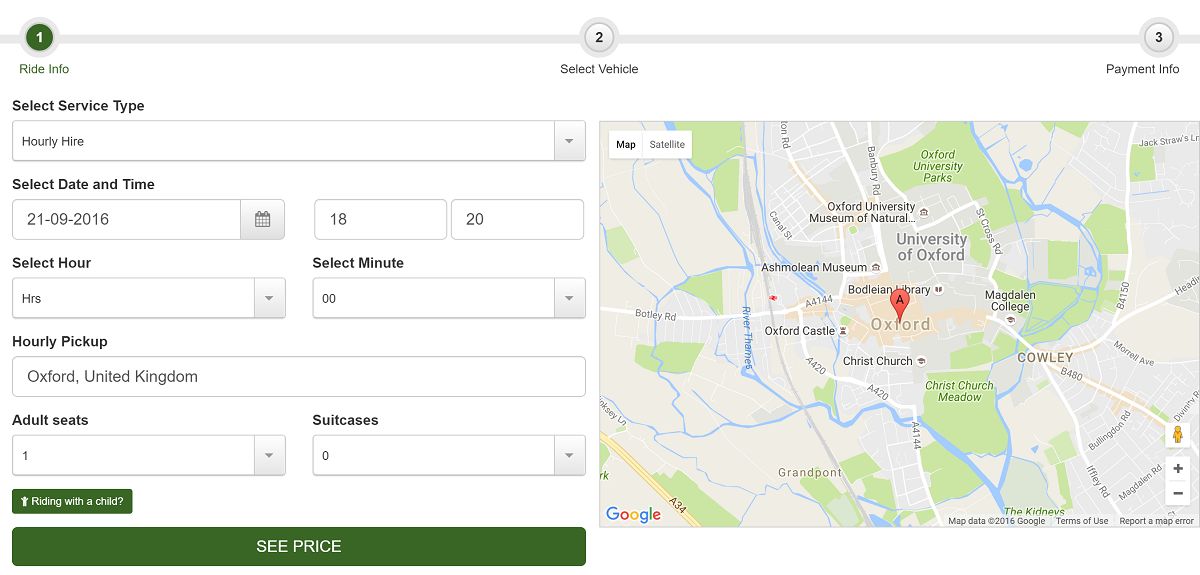
With The Booking Form you can have Hourly hire or set up each car with Price per hour.
To set that up go to the back office (My Company) > Dashboard > Settings > General Settings > Show Hourly hire: Yes
Then go to back office (My Company) > Dashboard > Cars > New (or Edit) Car.
User as Hourly hire: Yes
Minimum Hours to hire: XX - you can limit the minimum hire time here.
Maximum Hours to hire: XX - you can also limit the maximum hours that this car can be hired for.
Price per Hour: XX - this is your price per hour for the hire.
Hourly hire Fee: XX - this is a flat fee that you can add to your hourly hire, it will be added regardless of the number of hours selected in The Booking Form.
Notes:
- Customers can select "Minutes" in quarters: 15, 30, 45 and the system will calculate minutes based on your "Price per Hour" option.
- Customers have to select "Hourly hire" at the top of the booking form Booking type drop down. If only "Hourly hire" booking is available then the Booking type drop down will not be shown.
- At the booking form number of hours that can be selected in the Hours drop down will be between "Minimum Hours to hire" and "Maximum Hours to hire".
- You can create Custom fields and assign them to Hourly hire. There is a special Custom field type for hourly hire called "Address search", with it you can allow the Customer to type in Pick up location if you are picking up your customers for your Hourly hire service.
- You can set up Search URLs directly to Hourly hire pre-selected settings and publish the links anywhere on the web, social media, emails, advertising campaigns, banners, buttons, links etc.